Trundle
Built for GSPro

See the shot. See the swing that made it.

The broadcast studio for your home simulator — running alongside GSPro with broadcast-quality streaming and recording, every round tracked, and a film room that shows you why the ball did that.

BroadcastRecordingAnalytics

Free · Windows 10/11 (64-bit)

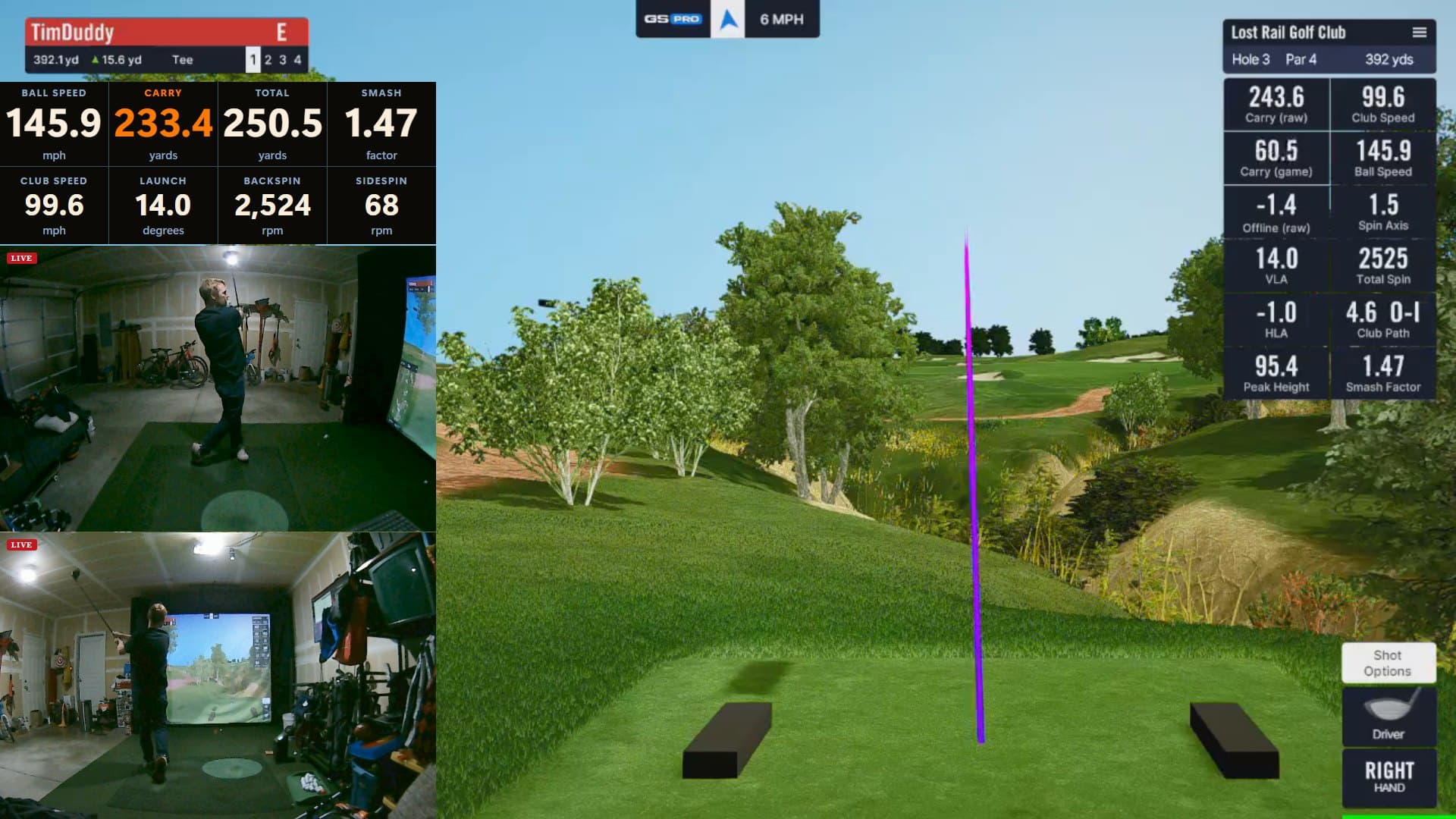
Trundle — Broadcast
Trundle compositing a live GSPro broadcast with camera and real-time shot data overlay

One complete workflow

From your first shot to a lower handicap

Trundle isn't a stack of unrelated tools — it's a single loop that carries every session from the tee to the takeaway.

Play

Play your round in GSPro.

Broadcast

Go live to YouTube & Twitch.

Record

Capture every session to file.

Analyze

Break down every shot & round.

Improve

Lower your handicap, round after round.

Serious home sim golfer

Running a dedicated sim PC with a secondary display for data — already invested in quality gear.

Sim golf content creator

Streaming GSPro to YouTube or Twitch and want broadcast-quality production without OBS complexity.

Golf instructor

Recording sessions and comparing swings for students, with room to grow into full coaching tools.

Everything your sim setup needs, in one app

From a no-camera-required data dashboard to a full streaming studio and post-round analytics, Trundle scales with your setup.

No camera required

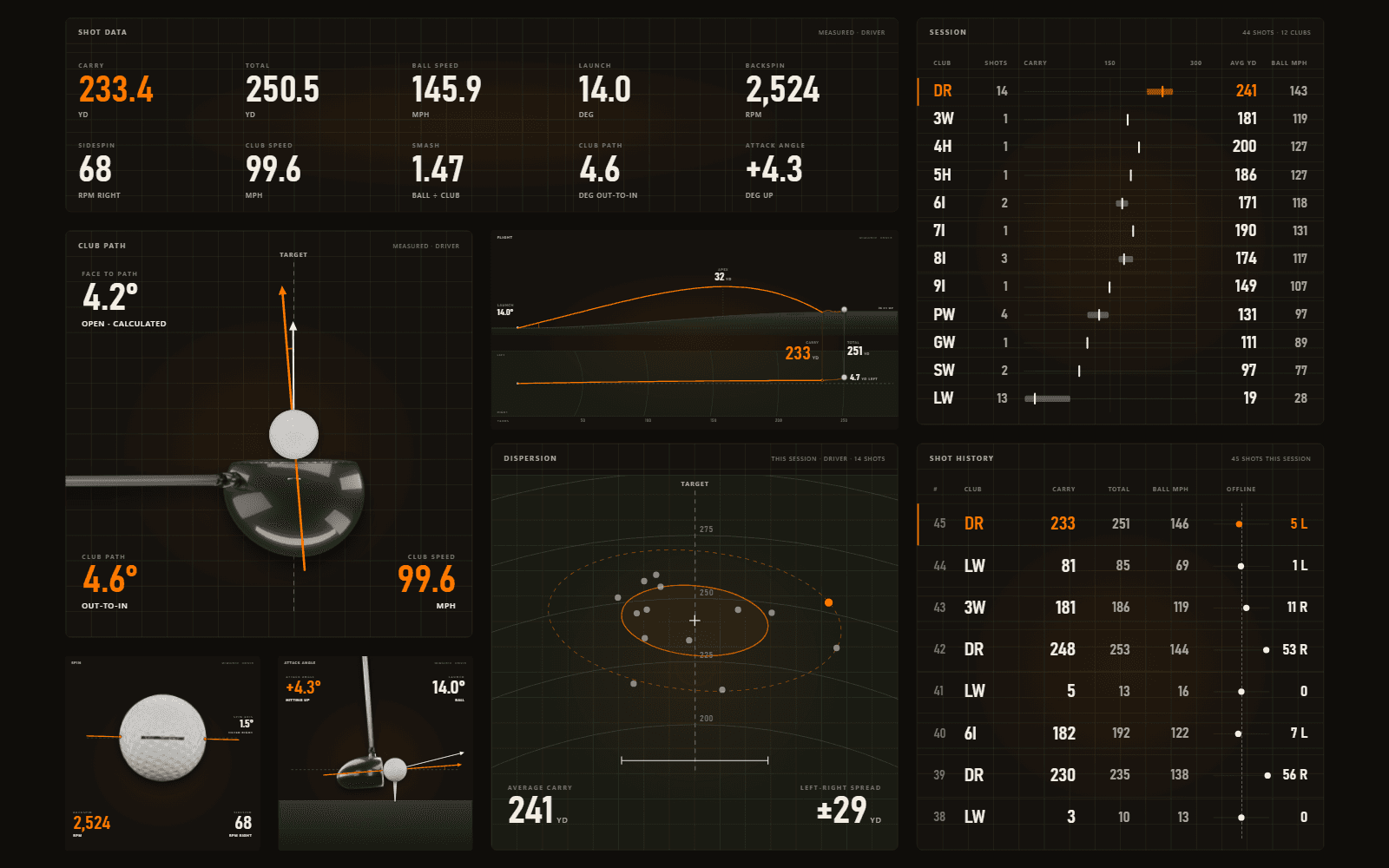
Data Dashboard

Real-time shot data pulled straight from GSPro, laid out in a fully configurable, drag-and-drop widget dashboard.

  • Ball speed, club speed, launch angle, spin rate, carry distance, shot shape, smash factor
  • Rolling shot history for the session
  • Session statistics — averages, dispersion, strokes gained
Data Dashboard

Broadcast & record

Streaming & Recording Mode

Everything OBS does for sim golf, purpose-built: GSPro window, camera, and data overlay composited into one broadcast-quality output — then streamed, recorded, or piped anywhere as a virtual camera.

  • RTMP straight to YouTube or Twitch — paste your stream key once
  • Local recording to file, or run as a virtual camera in other apps
  • System and microphone audio capture, pre-built creator layouts
Streaming & Recording Mode
Film Room

Ball data tells you what happened. Film Room tells you why.

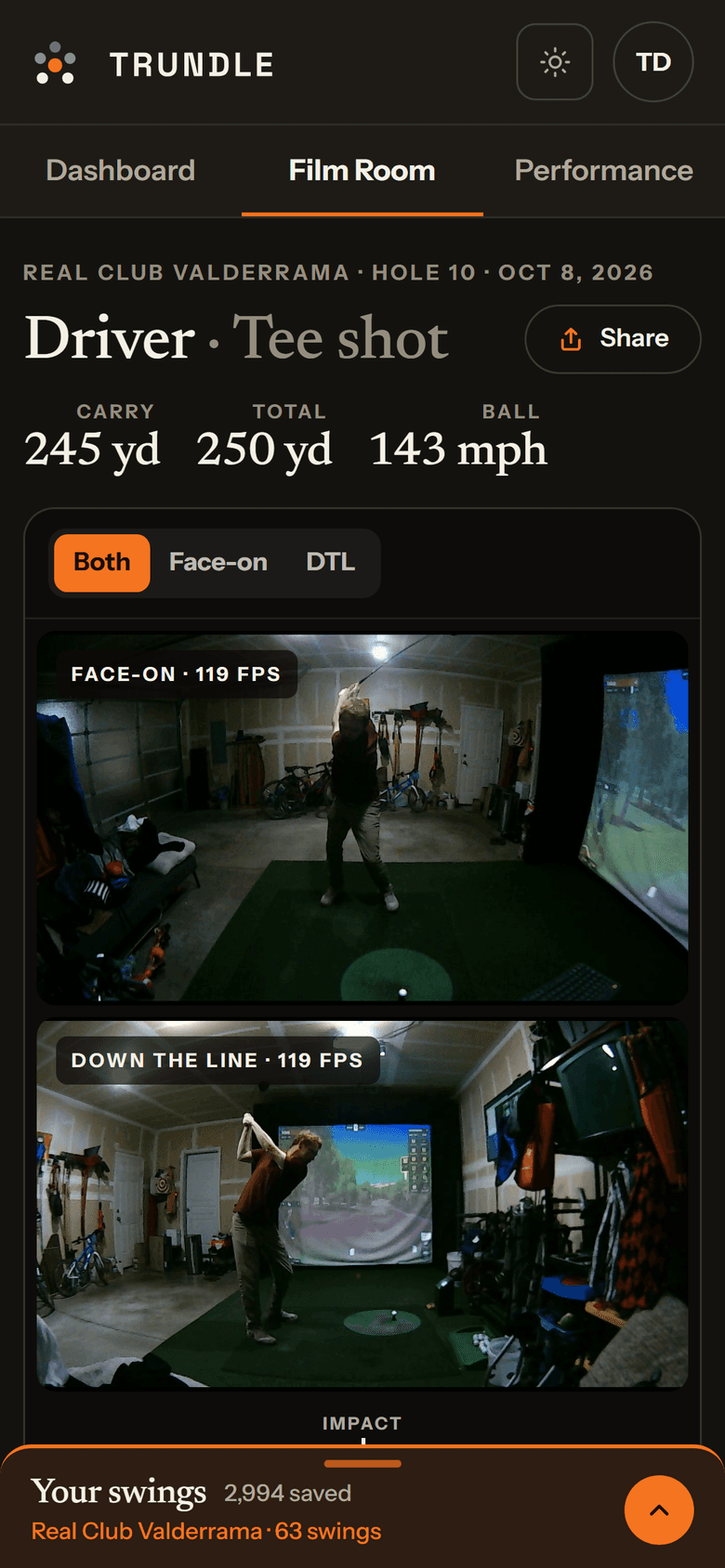
Every shot you hit is saved with the swing that produced it. Two camera angles, frame-synced and slowed down, with your body tracked through the motion — so the number on the overlay and the move that caused it are finally the same story.
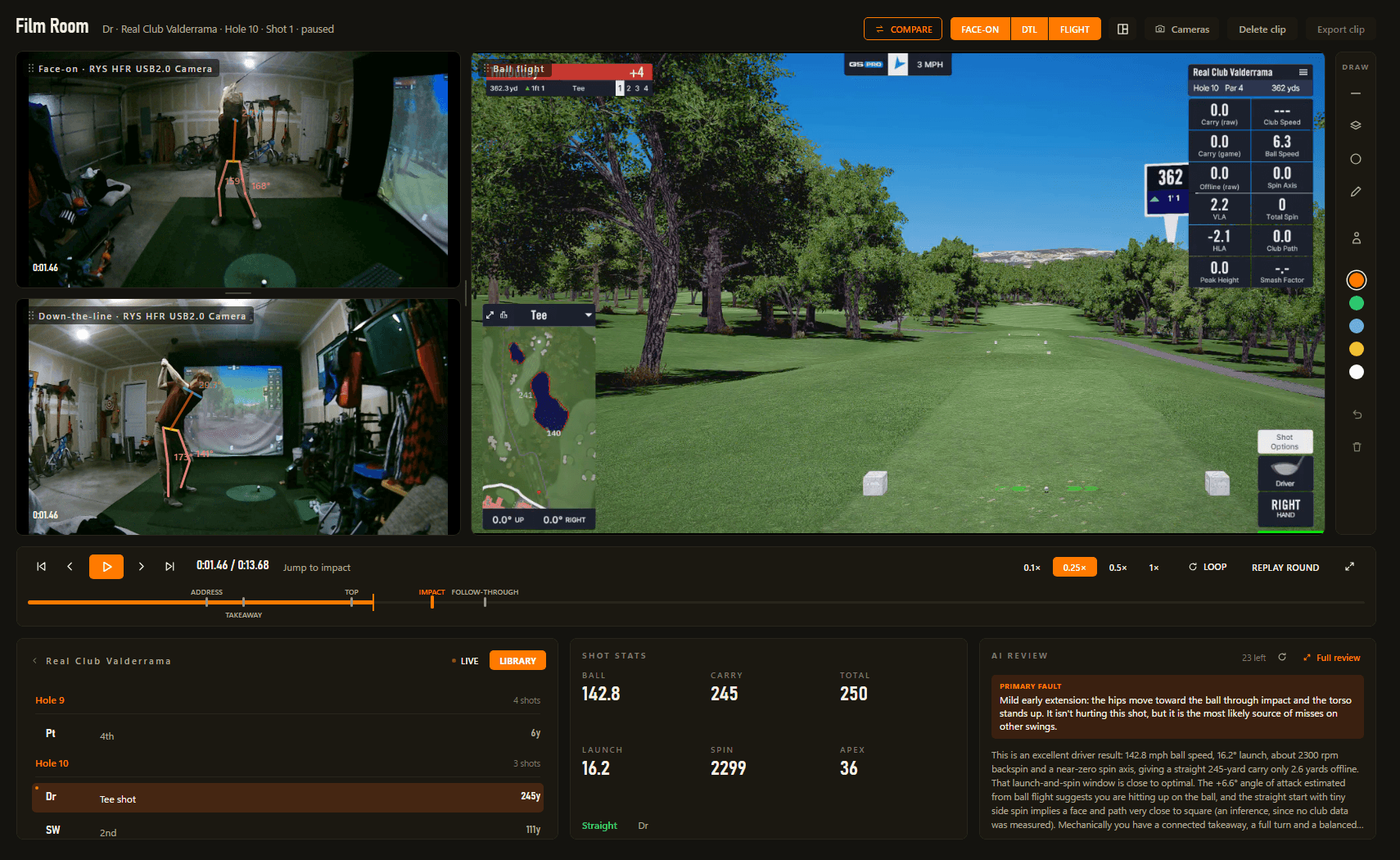
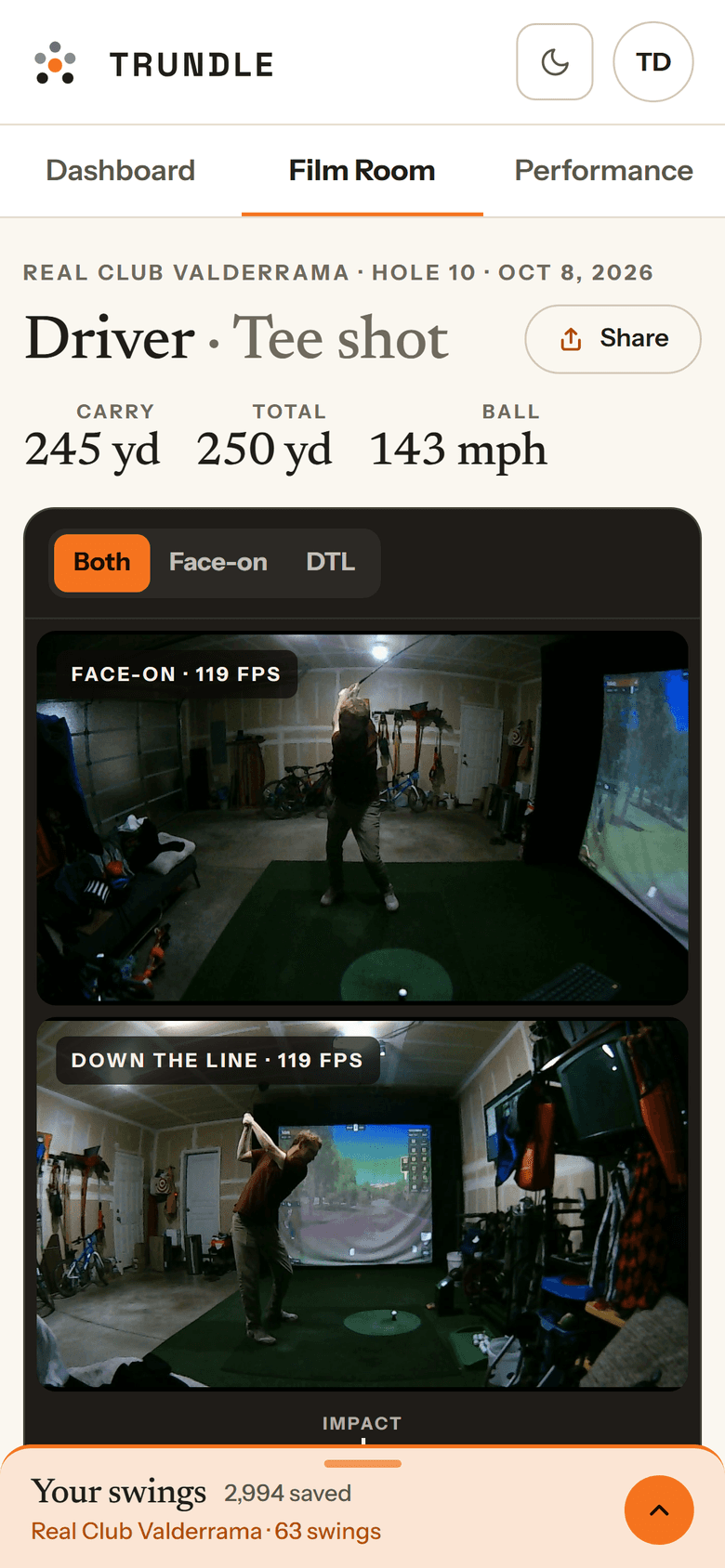
Film Room: one swing from a face-on and a down-the-line camera on the same frame, body tracking drawn over both, ball data and a written AI review beneath.
One shot, both angles, the body tracked and the review written — on one screen.
Close crop of the down-the-line camera: the golfer at the top of the backswing with spine, shoulder, arm and leg lines drawn on, each labelled with its angle in degrees.
Measured, not eyeballed — the same lines on every swing, in degrees.
Close crop of the AI review panel: a named primary fault — an over-drawn delivery — followed by a written assessment citing the shot's ball speed, carry and spin.
A named fault, argued from the numbers that shot actually produced.

Two angles, frame-synced

Face-on and down-the-line playback locked to the same frame, so you can see the whole move at once instead of guessing between two clips.

Measured, not eyeballed

A body-tracking overlay puts real numbers on spine angle, shoulder and hip turn — the same lines every swing, so a change is a change and not a trick of the camera.

A review that knows your misses

Every clip is tied to the shot that produced it, so feedback is grounded in what the ball actually did rather than a video in isolation.

Broadcast is how you share it. Film Room is how you fix it.

See what's included

Then watch it work

Every round is saved and broken down, so progress is something you can look at rather than something you have to feel.

Every shot, every round

Round Detail & Shot History

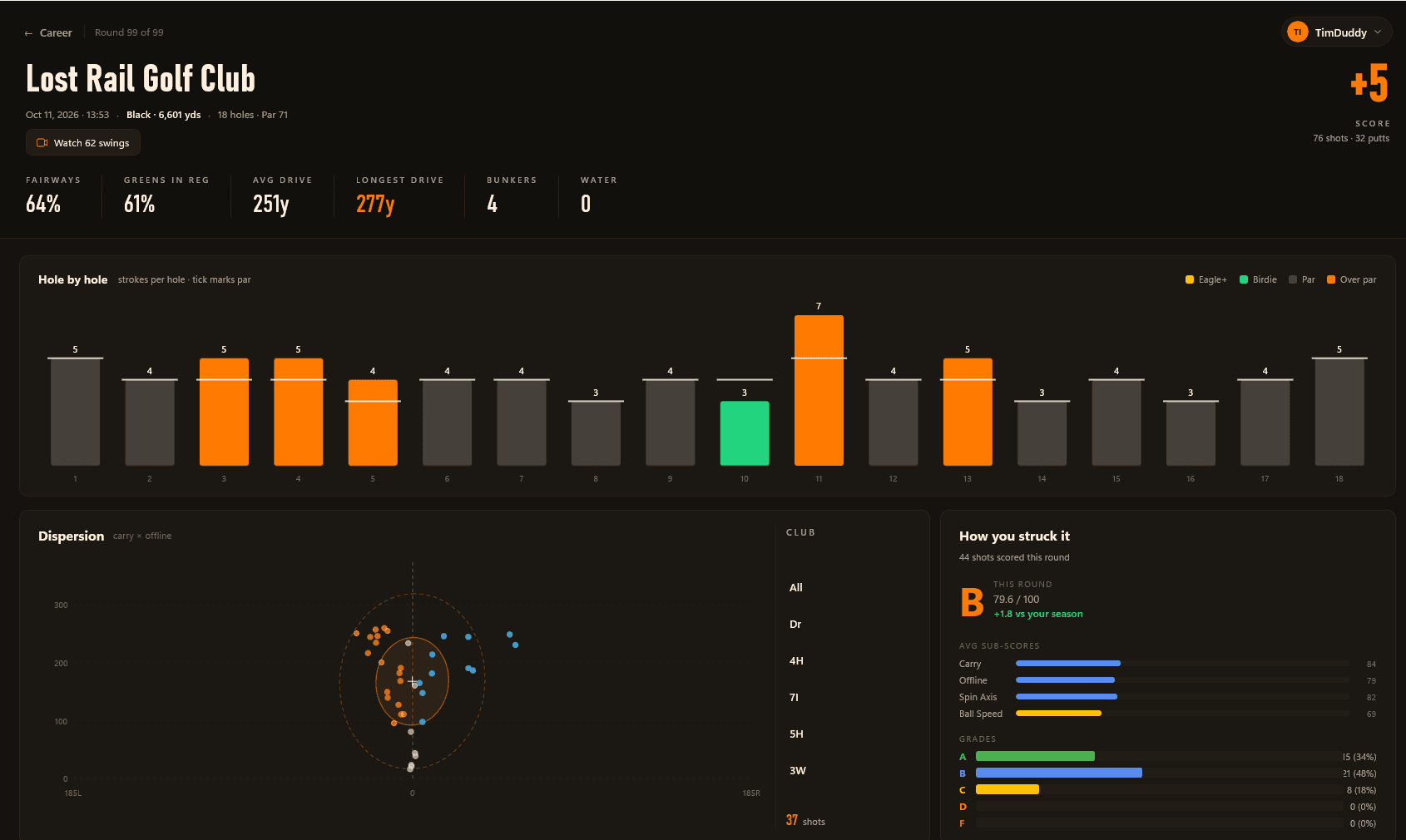
Drill into any round with a full hole-by-hole breakdown, club performance radar, and every shot ranked — so you know exactly where strokes were gained or lost.

  • Dispersion
  • Club tendencies
  • Shot history
  • Round summaries
  • Hole-by-hole scoring chart with par comparison
  • Club performance radar across the bag
  • Individual shot ranking with distance, accuracy, and strokes gained
Round Detail & Shot History

Improve after every round

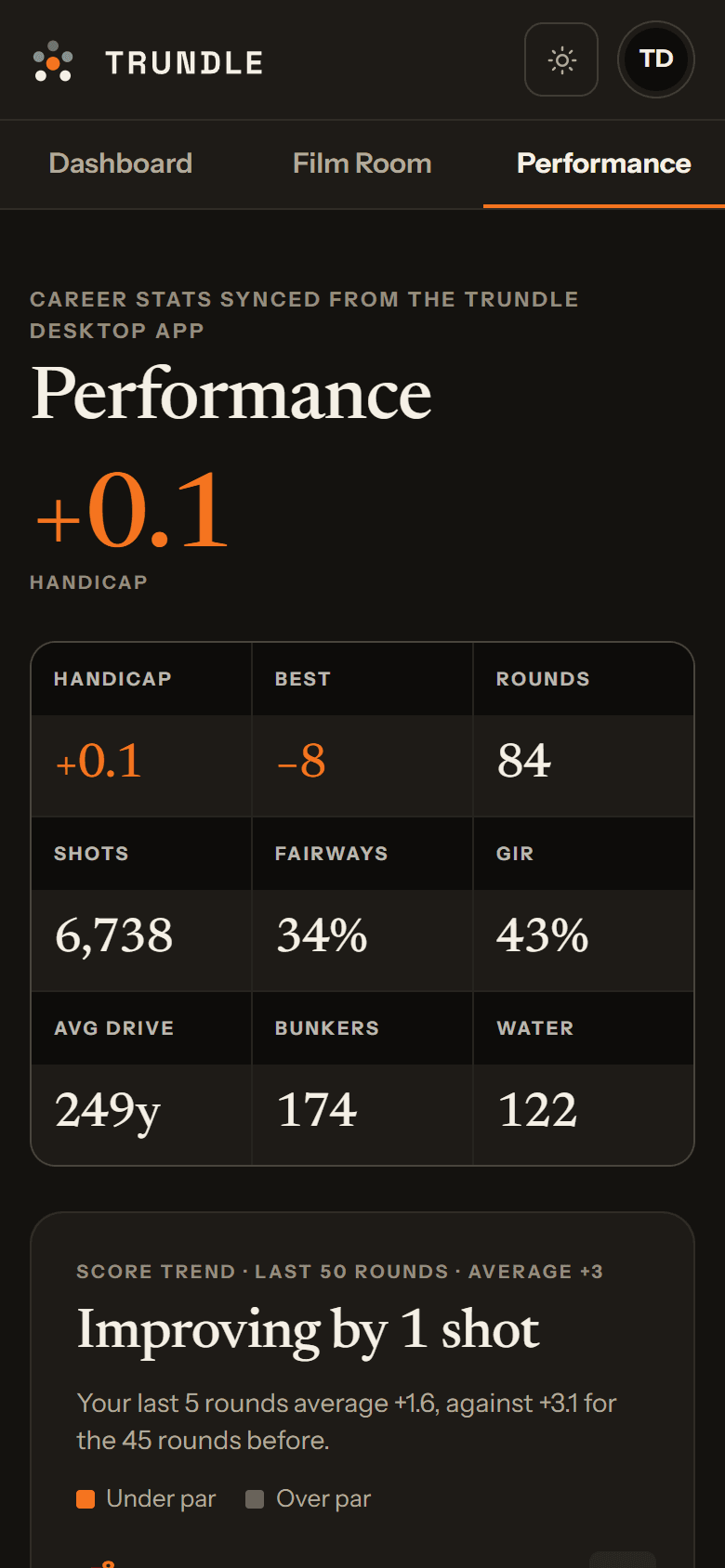
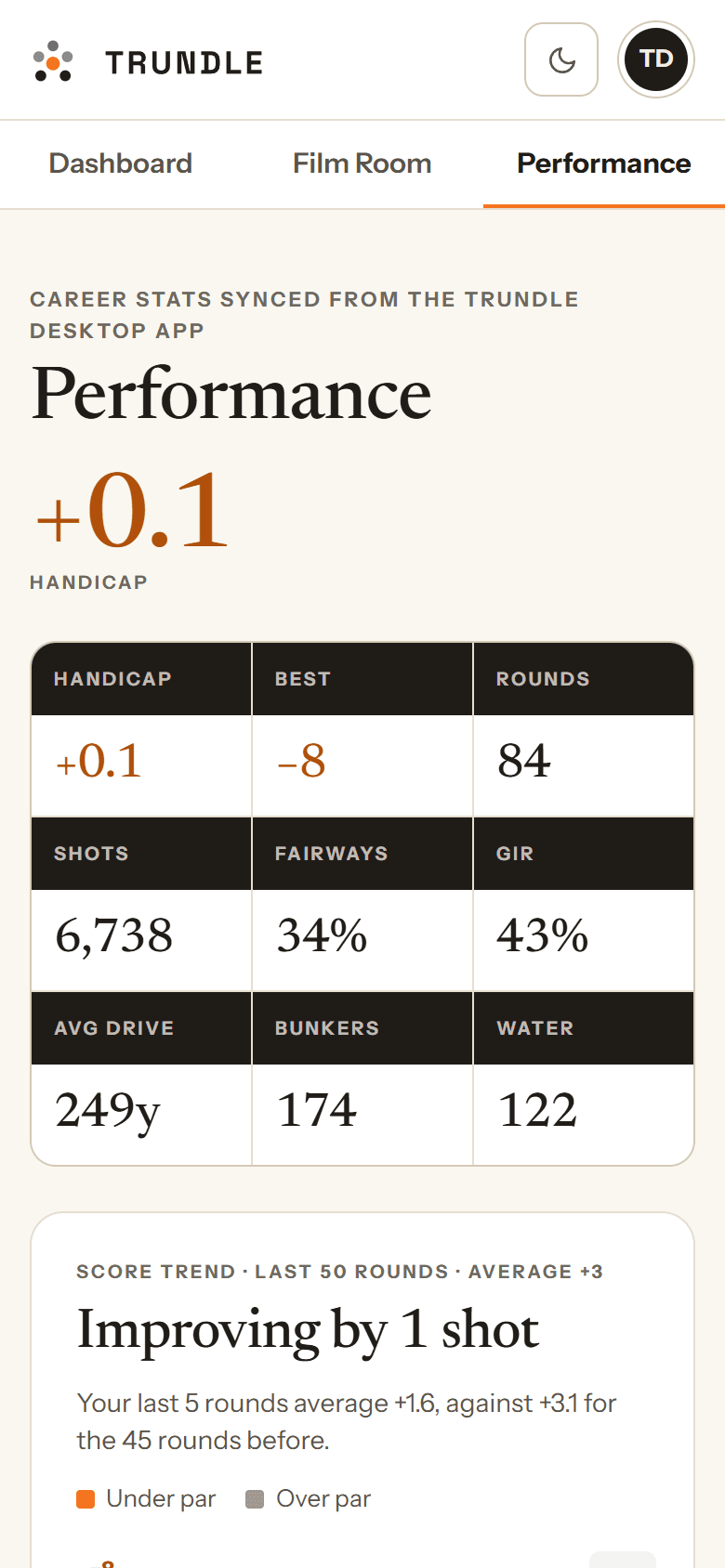
Performance Analytics

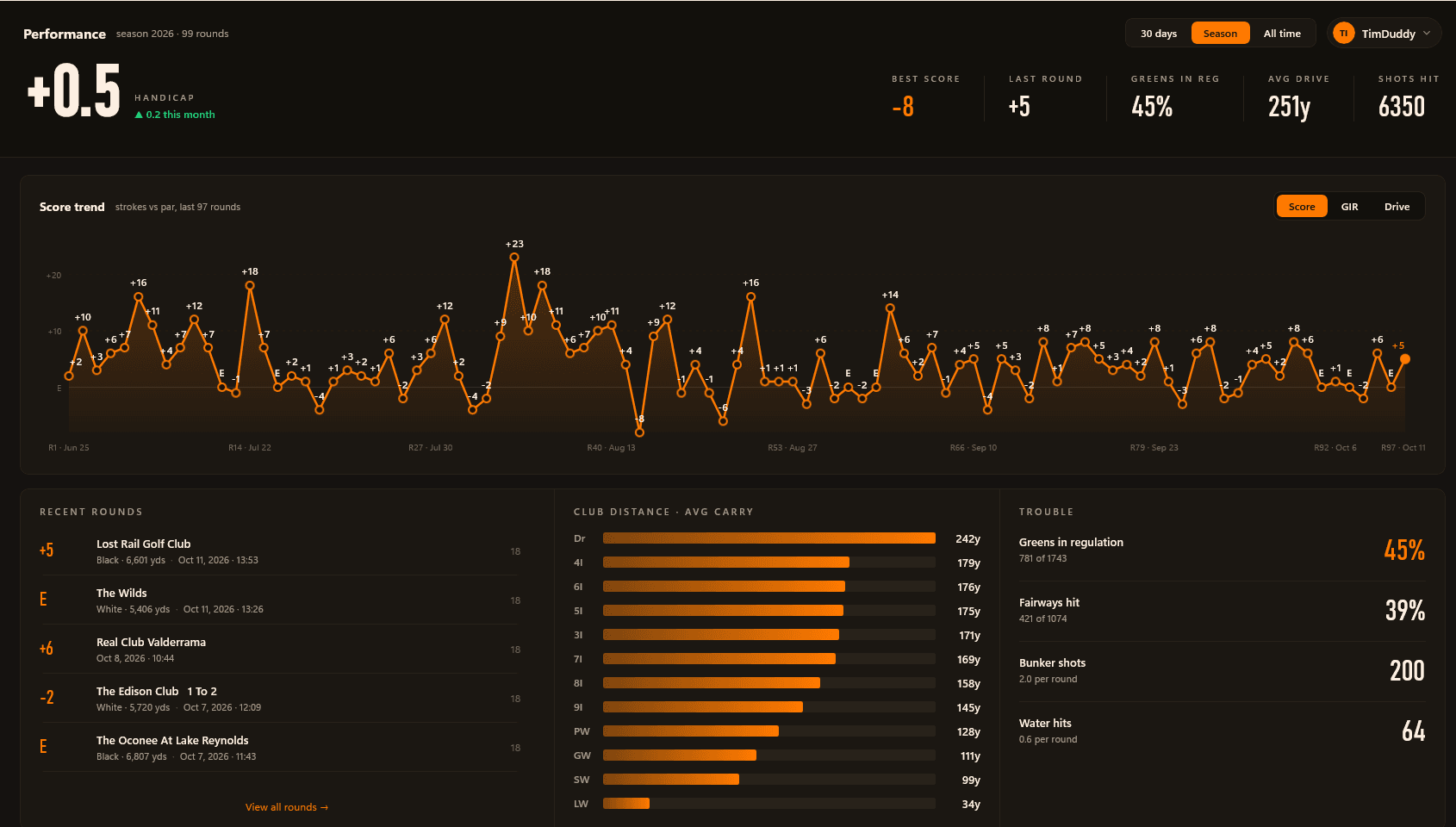
Every round is saved and broken down — handicap tracking, score trends, club distances, and shot dispersion so you can see exactly where your game is improving and what to practice next.

  • Dispersion
  • Club tendencies
  • Shot history
  • Round summaries
  • Season overview with handicap index, scoring trend charts, and recent rounds
  • Club distance averages, trouble-shot stats, and strokes-gained insights
  • Dispersion patterns and club tendencies that turn data into a practice plan
Performance Analytics

Questions

Before you download

What people usually want to know about cameras, launch monitors and what Trundle needs from your bay.

Still stuck on something? support@gettrundle.com

Do I need GSPro, and which launch monitors work?
Trundle is built specifically for GSPro, and works with every launch monitor GSPro does. It never talks to your launch monitor directly — it picks each shot up from GSPro once GSPro has recorded it. So whether you’re on Uneekor, SkyTrak, Mevo+, Bushnell, Garmin, FlightScope or Foresight, if the shot lands in GSPro it lands in Trundle, with nothing to reconfigure on the launch monitor side. Other simulator software (E6, TGC, Awesome Golf) isn’t supported today.
Does it change anything about my GSPro setup?
No. There is no mod, no plugin and nothing injected into GSPro — Trundle only reads the files GSPro already writes and captures its window the way any screen-capture tool does. It does need to run on the same PC as GSPro, side by side, which is the machine you already play on.
Do I still need OBS?
No. Scene layouts, camera sources, audio capture, streaming and recording are all built in — purpose-built for a golf bay instead of assembled out of generic sources. If you already have an OBS setup you like, Trundle can output as a virtual camera and feed straight into it.
Do I need a camera, and how many?
None at all for the data dashboard, round tracking and performance analytics — plenty of people run Trundle purely as a shot-data display on a second screen. One camera covers streaming and swing replay. Two — face-on and down-the-line — unlocks the Film Room’s synced dual-angle replay and the body-tracking measurements that need more than one view of you.
What kind of camera do I need?
Any USB webcam Windows recognises, plus capture cards and action cameras that present themselves as one. For swing replay, frame rate matters far more than resolution: 720p at 120fps is the sweet spot, and a 30fps camera will smear through impact no matter how many megapixels it has. Trundle lists the formats each connected camera actually supports, so you can check what yours can do before buying another one. If you run two high-frame-rate cameras, spread them across separate USB ports rather than one shared hub.
Where does my footage go? Is anything uploaded?
Your clips, rounds and shot history stay on your own PC. The single exception is AI swing analysis, which sends a handful of frames from the swing you asked about, only when you ask for it. Clips are trimmed to the swing itself — roughly 50 MB per camera per shot at 720p120 — and retention settings age old ones out so the folder doesn’t quietly grow forever. Full detail is in the privacy policy.
What are the system requirements?
Windows 10 or 11, 64-bit, on the PC running GSPro. In practice a machine that runs GSPro comfortably runs Trundle alongside it. For streaming and recording, a GPU with a hardware video encoder (NVIDIA NVENC, Intel Quick Sync or AMD AMF) is strongly recommended — Trundle uses whichever you have and falls back to CPU encoding if you have none. Encoding on that dedicated encoder is separate silicon from the part rendering GSPro, so it isn’t competing with your frame rate.
Is there a free version?
Yes, and it isn’t a trial. The real-time data overlay, configurable scene layouts, swing camera replay, virtual camera output and session history are free, with no account required. Paid plans add streaming and recording (Creator), then the Film Room, AI swing analysis and long-term history (Pro) — those sign in with Google.
Can I cancel, and what if it isn't for me?
Cancel any time from your account page — you keep the paid features until the end of the period you have already paid for. And if it turns out not to fit your setup, any purchase is refundable within 14 days, no reason needed. See the refund policy.

Simple, transparent pricing

Start free. Add streaming when you want to share it, and the full film room when you want to fix it.

MonthlyYearly

Free

$0 forever

The essentials — no account required.

  • Real-time shot data overlay
  • Configurable scene layouts
  • Swing camera replay
  • Virtual camera output
  • Basic session history

Creator

Creator

Everything in Free, plus the output half: share what you're doing.

  • Stream to YouTube, Twitch & more
  • Local recording to file
  • Remove the Trundle watermark
Most Popular

Pro

Pro

Everything in Creator, plus the improvement half: understand what you did.

  • Film Room — two-angle replay, telestration & body tracking
  • AI swing analysis
  • Extended history & long-term trends
  • Cloud backup of sessions and video

Ready to transform your simulator?

Broadcast it, record it, and see the swing behind every number. One application that runs alongside GSPro.

Free · Windows 10/11 (64-bit)